Observation capture
An auditor walking a kitchen doesn't think in framework citations — they think "broken floor tile" or "cold unit above 41°F". Observation capture lets you record exactly that, once, and the platform does the crosswalk: one capture becomes control evidence in every framework that regulates the same condition, plus a finding for review when a deficiency was actually seen.
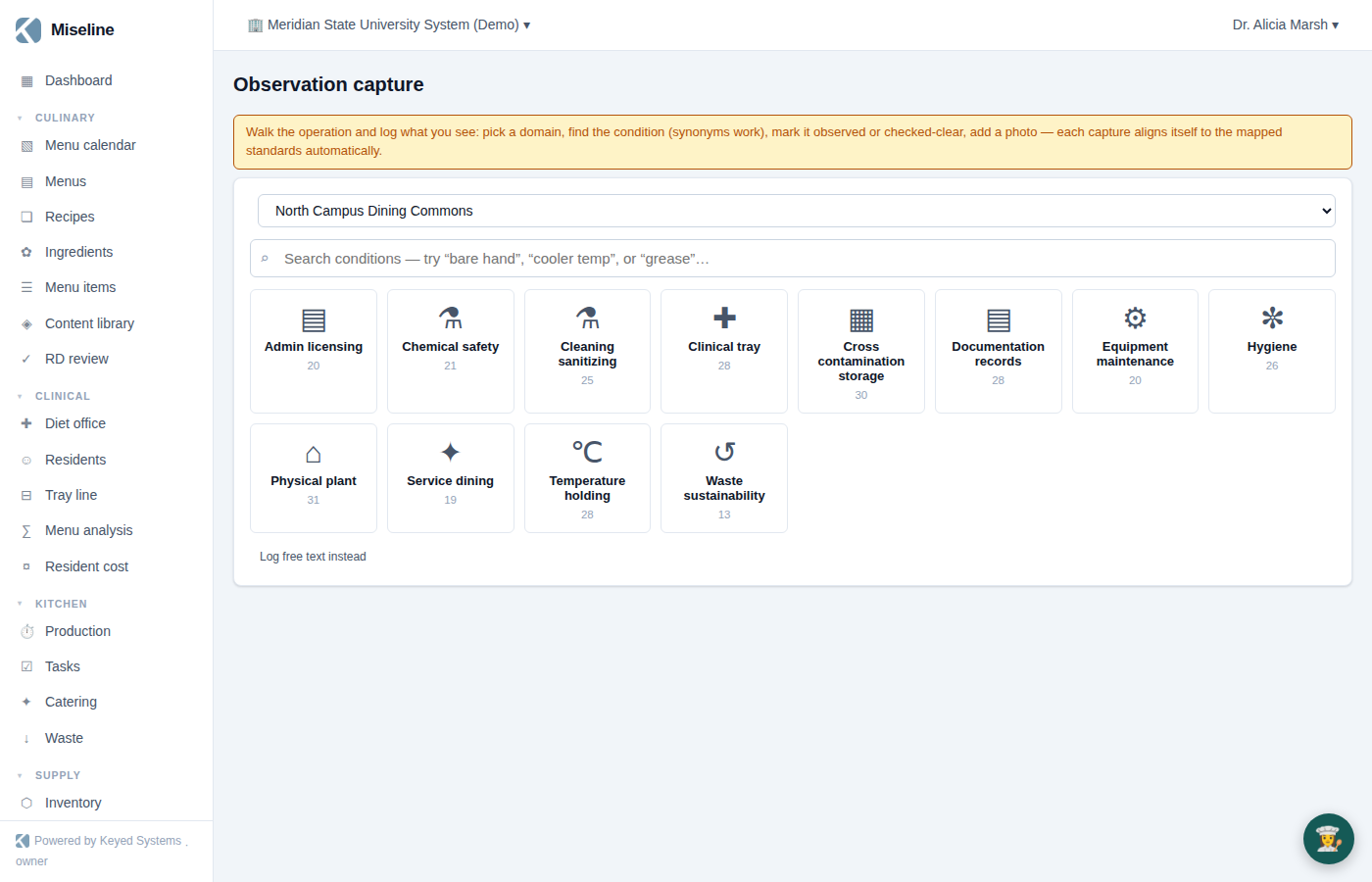
The condition library ships with 289 observable conditions across 12 domains — physical plant, temperature and holding, hygiene, cross-contamination and storage, cleaning and sanitizing, chemical safety, equipment and maintenance, documentation and records, clinical and tray, service and dining, waste and sustainability, and administration and licensing. Every condition is mapped to the specific controls it relates to, across the built-in framework packs, with a note explaining why each link is defensible.
Where you can capture
- Review → Capture — the standalone page, for a walk that isn't part of any particular inspection.
- Inside an inspection run — the runner has a Capture observation button; captures made there are pinned to that inspection.
- From an interview or walkthrough — same button on the session detail, pinned to that session.
- From a scanned tag — scanning a piece of equipment or a space opens capture pre-scoped to that exact target, with conditions suggested for its type. See Tags, scanning and audit trails.
- On the staff app — fully offline-capable (see below).
Finding the condition
The surface is built for speed in the field: a big icon-driven domain grid (each tile shows its condition count), and a search box that understands synonyms — auditors type "cracked floor tile", "no hot water", or "hose below flood rim", and the matching condition surfaces even when the library phrases it differently. Matched synonyms are shown so you can see why a result appeared.
If nothing matches, log it as free text — the capture is never blocked by the library's vocabulary.
Observed, or checked and not present
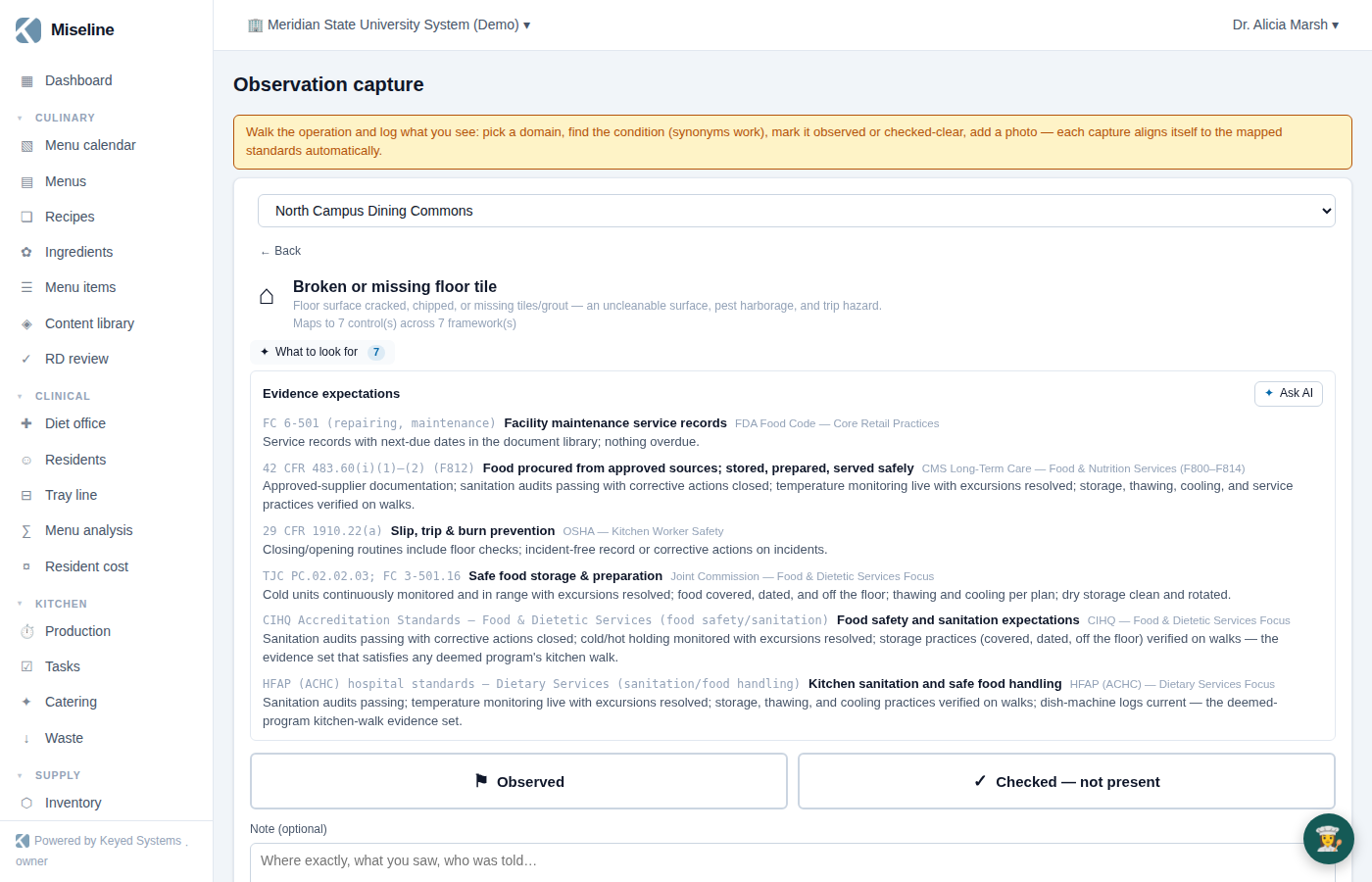
Conditions are phrased as defects, and the capture form asks one question about each: was the condition, as phrased, actually seen? Two buttons:
- ⚑ Observed — the deficiency was seen. This writes a fail evidence entry on every control the condition violates and a pass entry on any control it supports, across every mapped framework — and raises one draft finding awaiting review in the findings queue. The finding carries the condition's default severity (you can override it at capture time), your note and photos, and cites the primary mapped control with its regulatory citation.
- ✓ Checked — not present — you looked for the condition and it wasn't there. This writes the symmetric pass evidence on the same violated controls and raises no finding. Checking clear is how routine walks build a defensible pass history, not just a record of problems.
Either way you can attach a note and photos (the photo button opens the camera on a phone). Free-text captures are always "observed" — you wrote it down because you saw it — and raise a draft finding flagged for later mapping, without writing control evidence until someone maps it.
After capture, a toast confirms the reach — "aligned to N controls across M frameworks" — with an Undo button.
Undo — and what it never touches
Undo removes the capture, its evidence entries, and the draft finding it raised — but only while that finding is still awaiting review. Once a person has accepted or dismissed the finding, the review decision stands: undo still removes the capture and its evidence, keeps the finding, and tells you so. Only the person who made the capture (or an admin) can undo it.
What to look for
Every condition — and every audit template item mapped to controls — carries a ✦ What to look for panel: our own written evidence expectations for each control involved, plus the related observable conditions worth checking while you're standing there. If AI is configured for your organization, Ask AI adds a synthesized field briefing on top; the written guidance never depends on it.
On the staff app, and offline
The staff app captures observations with the same domain grid, synonym search, and verdict buttons — and it's built for walk-ins with no signal. Offline, the capture is saved on the device and the app says so; photos queue alongside it. When you reconnect, photos upload first and then the capture uploads automatically, with retries. Uploads are replay-safe: a capture that retries can never double its evidence or its finding.
On the web, captures post in the moment — the browser surface needs a connection.
Where captures land
- Control evidence appears on the affected controls in Compliance frameworks and the Standards Library, and feeds each control's recent-evidence list and 90-day pass rate.
- Draft findings appear in the findings queue for human review — nothing becomes an accepted finding without a person.
- Captures made on a scanned piece of equipment or space appear in that target's audit trail (see Tags, scanning and audit trails).
Tips
- Check things clear, not just broken — "checked, not present" entries are what make your evidence history persuasive on survey day.
- Use the suggested conditions when you arrive by scan — they're matched to the equipment type, so the two-tap path covers the common checks.
- Prefer a library condition over free text whenever one fits: conditions carry the crosswalk, free text doesn't until it's mapped.